e-Nabız Chrome Extension Guide
Step-by-step setup to import your e-Nabız lab results into ViziAI.
Chrome extensions only work on desktop Chrome, not on mobile devices. After importing from a computer, you can view your results on any device.
- 1
Install the extension
Install the ViziAI e-Nabız extension from the Chrome Web Store.
- 2
Create an API key
Go to viziai.app → Settings → API Keys and create a key. If you have multiple profiles, make sure to select the right one — all reports imported with this key will be saved to that profile. You can create separate API keys for different profiles.
- 3
Copy the key
Copy the generated key using the copy button.
- 4
Paste it into the extension
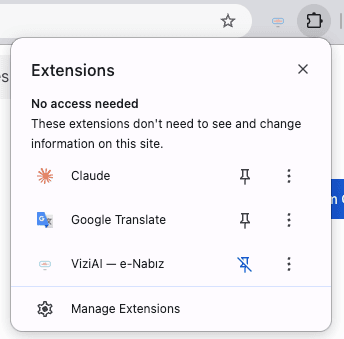
Open the ViziAI extension from Chrome's extensions area. Paste your API key and click Test Connection.
- 5
Click "Send to ViziAI" on e-Nabız
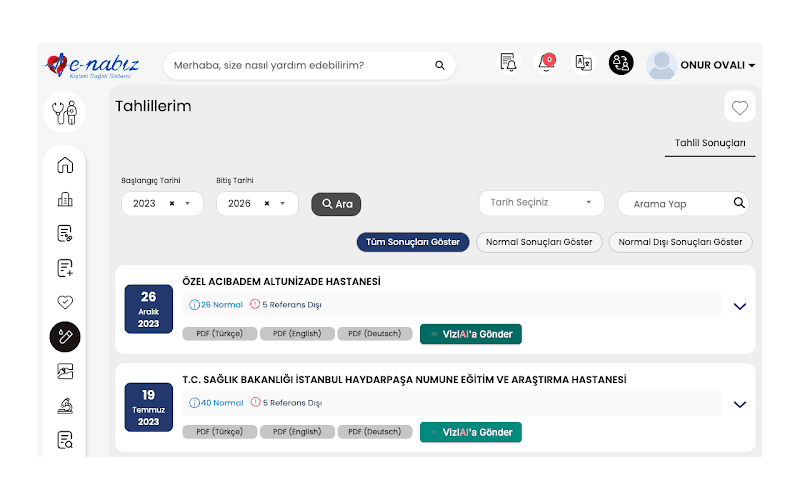
Log into enabiz.gov.tr and open the Tahlillerim (My Lab Results) page. Click the green "Send to ViziAI" button next to any report.
If you don't see the button, make sure you've added the API key to the extension and refresh the page once. - 6
Review and confirm
A popup shows your lab values. Confirm to import them into your profile.